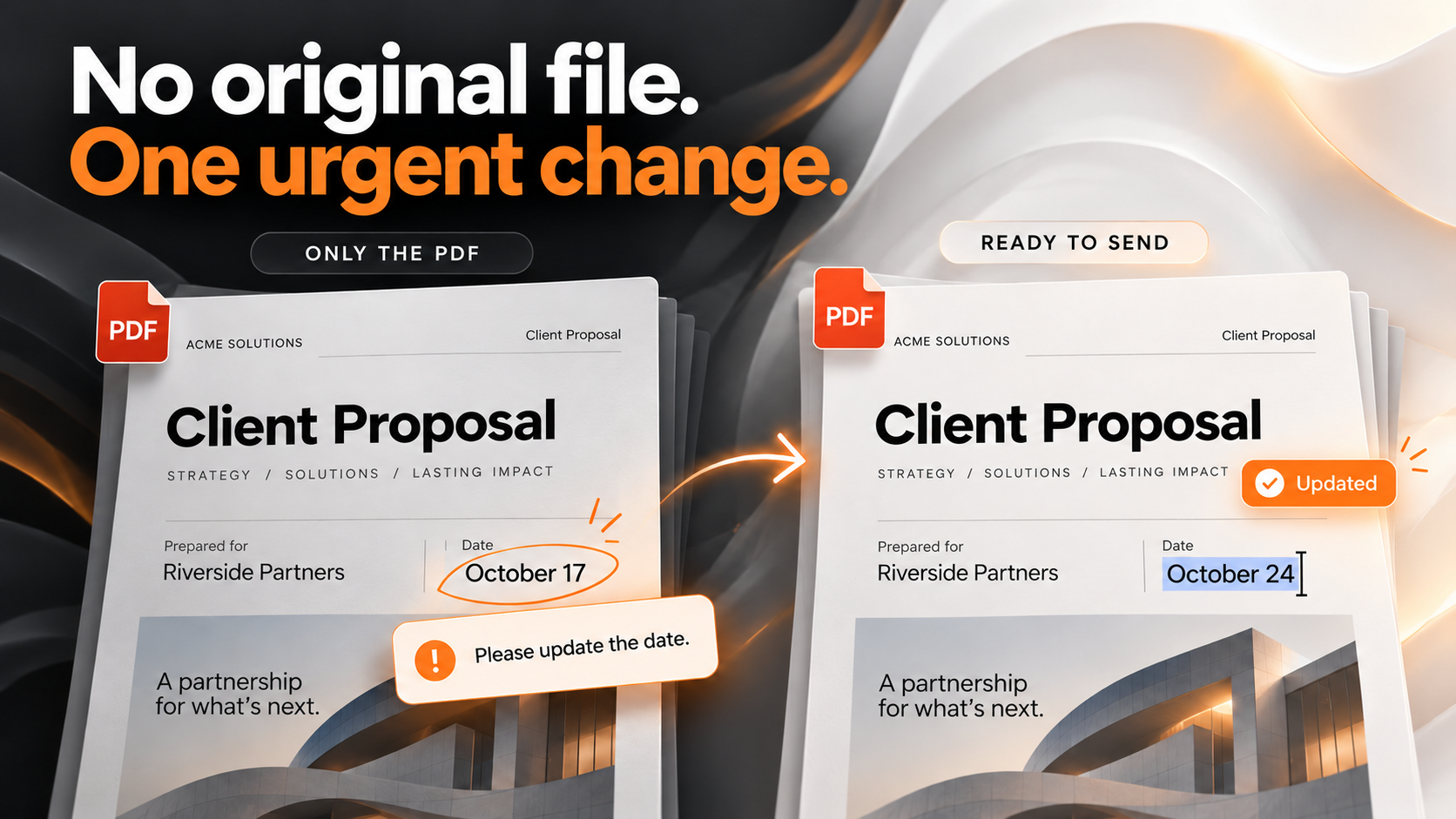
A proposal to update. A sentence to fix. A missing Word file. Here is how to make changes directly in a PDF—and what to do when the document is a scan.
Affiliate disclosure: Hubiify may earn a commission if you purchase through links in this article.
Illustration: updating a PDF when the original source file is unavailable.
The short answer
You can often edit a PDF without its source file. For small corrections, use a PDF editor to change existing text. For scanned pages, recognize the text with OCR first. For major rewrites, converting to Word or recovering the source document may be more practical.
This guide explains a workflow using Foxit PDF Editor. Menus and available features can vary by version, operating system and plan.
Choose the right method for your document
Fix a sentence or amount: use a text-editing tool.
Edit words in a scan: run OCR, then review the recognized text.
Reorder or remove pages: use page organization tools.
Rewrite several pages: consider Word conversion or the source file.
A PDF reader may let you add comments or fill fields without allowing you to change the underlying text.
How to edit text with Foxit PDF Editor
A client requests a change to a proposal, but you only have the PDF. Start with a copy of that file so the original remains available.
1. Open the PDF and choose Edit Text
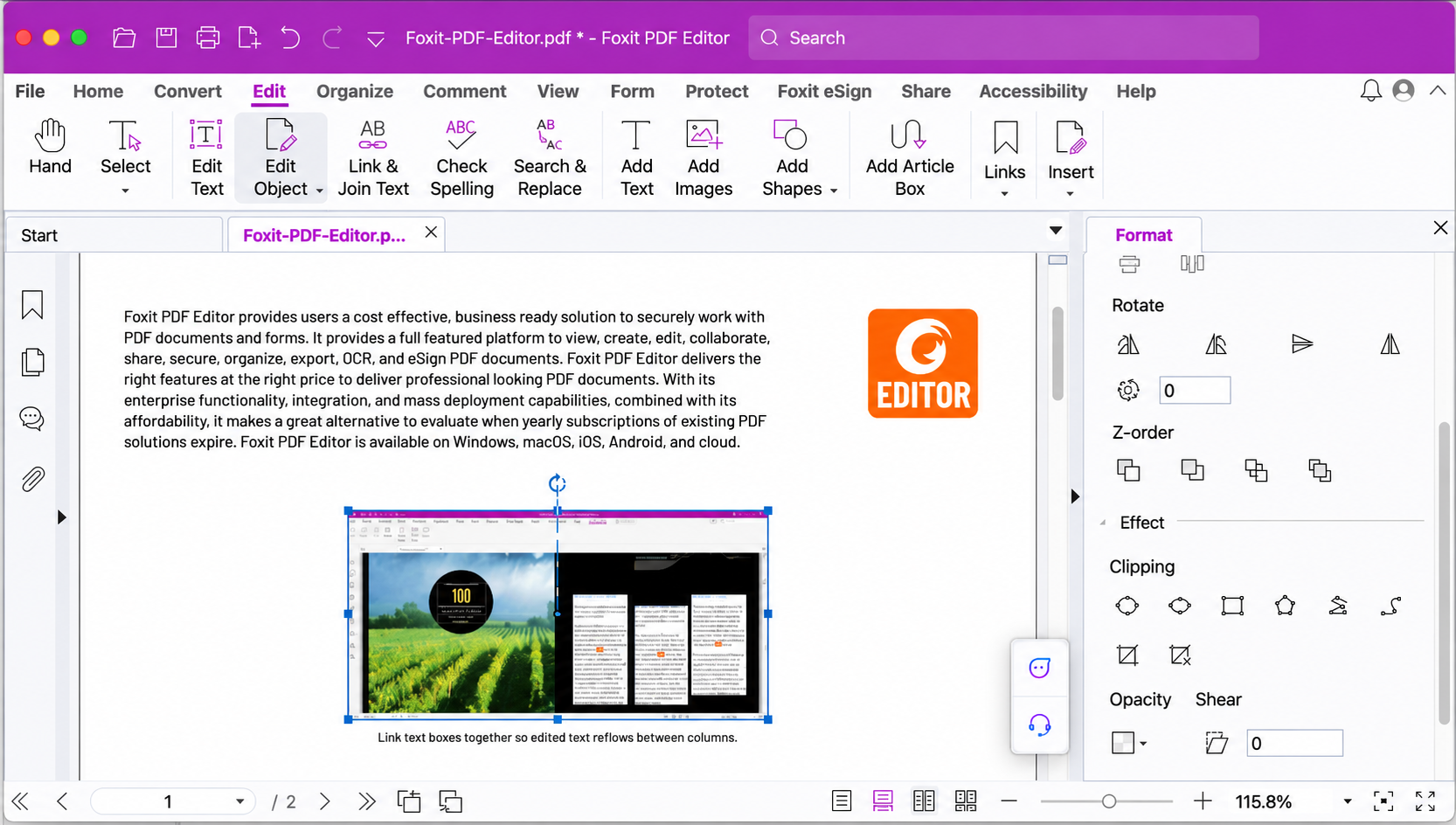
Open your document in Foxit PDF Editor. Select Edit → Edit Text, then click the paragraph you want to update.
2. Make your correction
Update the wording, date or amount. Keep changes focused when possible: adding a long paragraph may affect line breaks and spacing.
3. Check the page layout
Review fonts, alignment and nearby tables or images. If the original font is unavailable, its replacement may look different.
4. Save a new version
Use a clear filename, reopen the saved document and check the edited pages before sharing it.
Foxit PDF Editor desktop interface. Appearance and tools vary by version and plan.
A scanned page can be a picture of text rather than editable text objects. Optical character recognition (OCR) turns the words in that image into machine-readable content.
Foxit can detect scanned or image-based PDFs and prompt you to recognize the text. Choose the recognition settings for your document, including its language and an editable output where offered.
Then check the result carefully. Low-quality scans, small print and unusual fonts can cause recognition errors. Verify names, amounts and punctuation before sharing the file.
Only need to organize the pages?
You do not need to rewrite a document to change its page order. Use Foxit’s page organization tools to rearrange, insert, rotate or delete pages as needed.
For example, remove an outdated page from a proposal or put scanned supporting documents in the right order. Check the final sequence, references and page numbering.
When converting to Word makes more sense
Direct PDF editing suits focused changes. If you need to rewrite multiple sections or redesign the structure, converting the PDF to Word may be easier.
Conversion can change complex tables, columns and graphics. Compare the result with the PDF before exporting the finished version. If a colleague still has the original source file, recovering it may save more time.
Foxit at a glance
8Expert Score
Foxit Review
Foxit Offers PDF editing, document conversion, electronic signatures and enterprise document workflows. Built for individuals and organizations that need to edit, sign, convert and manage PDF documents across devices.
PROS
Broad PDF feature set across many platforms.
Competitive option for editing, conversion and e-signature workflows.
Enterprise deployment, API and security capabilities are available.
CONS
The product family and licensing choices can be confusing.
Some cloud, AI and e-signature features require separate plans or allowances.
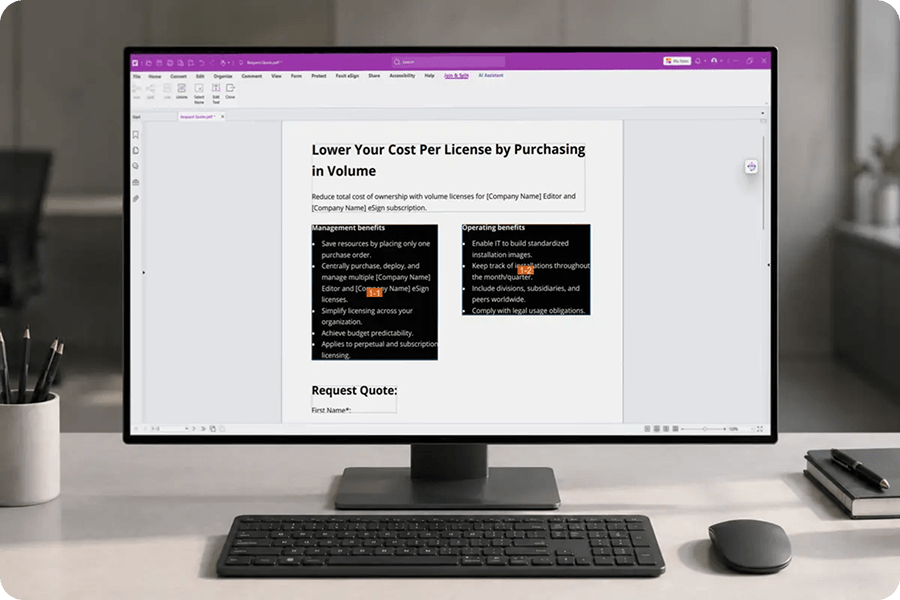
Foxit PDF Editor desktop interface: document layout
Make recurring PDF updates easier
Do you regularly update client proposals, contracts or reports? When the original file is missing, small PDF changes can interrupt work that should already be finished.
Foxit PDF Editor lets you work directly with your PDFs: correct editable text, organize pages and convert documents when a larger rewrite is needed. For scanned files, check that your chosen plan includes the OCR tools you need.
For these tasks, choose PDF Editor on the Foxit store. Compare the platform, included features and billing terms, then select the plan that matches your document workflow.
Yes. A PDF editor can change editable PDF text directly without the original Word file.
Why can’t I select the words in my PDF?
The page may be image-based, or the file may restrict editing. A scan may need OCR. For a restricted document, ask its owner for an editable copy or the necessary permission.
Will OCR recognize every word correctly?
No. Always review recognized text, especially numbers and names.
Is PDF editing the same as requesting signatures?
No. Editing changes document content. An e-signature workflow collects signatures. Choose the Foxit product and plan for the task you need.
Sources and editorial notes
This guide is based on Foxit documentation and does not claim a hands-on product test. The editorial score, pros and cons above are drawn directly from the Foxit listing on Hubiify. Features and menus may vary by version, operating system and plan.